Elevating Your Laptop Webcam: A Comprehensive Guide to Superior Video Quality
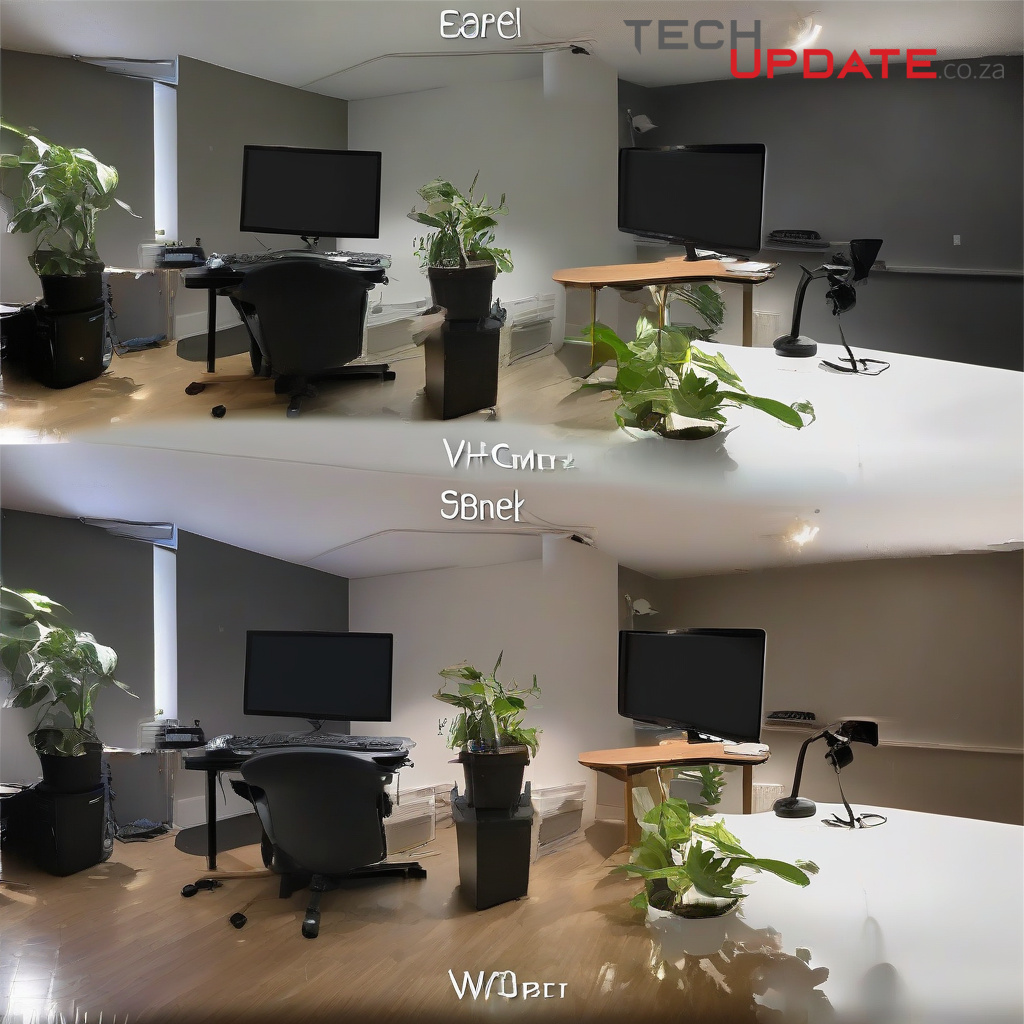
Unlocking Your Laptop Webcam's Full Potential
While often overlooked as a secondary feature, your laptop's integrated webcam can be significantly enhanced to deliver a professional and clear image for video conferences, virtual meetings, and content creation. The inherent limitations of these small sensors can be mitigated through a combination of environmental adjustments, software optimizations, and a few strategic accessories.
The Crucial Role of Lighting
Perhaps the single most impactful factor in webcam image quality is lighting. A poorly lit environment will force the webcam sensor to compensate, leading to grainy, dark, or washed-out visuals.
- Frontal Lighting is Key: Position a light source directly in front of you, illuminating your face evenly. Natural light from a window is ideal, but avoid having a window behind you, which will silhouette your face.
- Ring Lights and Desk Lamps: Affordable ring lights or small LED desk lamps can provide excellent, diffused frontal illumination. Look for models with adjustable brightness and color temperature to match your surroundings.
- Avoid Overhead and Backlighting: Overhead lighting can create harsh shadows under your eyes and nose. Backlighting, such as a bright window or lamp behind you, will make you appear dark and indistinct.
Optimizing Your Environment and Background
What's behind you is almost as important as what's in front of you. A cluttered or distracting background detracts from your professionalism.
- Clean and Tidy: Ensure your background is clean, organized, and free of distracting elements. A plain wall or a minimalist shelf works well.
- Strategic Placement: Position yourself such that the camera captures an appealing and uncluttered segment of your room. Consider the rule of thirds for a more visually engaging composition.
- Virtual Backgrounds (with caution): While popular, virtual backgrounds can sometimes appear artificial or glitchy if your lighting isn't perfect or your laptop lacks sufficient processing power. Use them judiciously.
Harnessing Software Settings and External Tools
Your operating system and various applications offer settings that can fine-tune your webcam's performance.
- System Settings: Access your laptop's camera settings (e.g., in Windows "Camera Settings" or macOS "Photo Booth" preferences) to adjust brightness, contrast, and white balance if available.
- Application-Specific Settings: Many video conferencing platforms (Zoom, Google Meet, Microsoft Teams) have built-in video settings that allow for minor adjustments, background blurring, or even touch-up filters. Explore these options.
- Dedicated Webcam Software: Some webcams, even integrated ones, can benefit from third-party software that offers more granular control over exposure, focus, and color correction. However, built-in laptop webcams rarely come with such dedicated software, requiring generic tools if available.
Considering External Hardware (When All Else Fails)
If extensive adjustments still fall short, an external webcam remains the most effective upgrade.
- Superior Sensors: External webcams often feature larger sensors, better lenses, and more advanced image processing capabilities than their integrated counterparts.
- Resolution and Framerate: Look for external webcams offering 1080p resolution at 30fps or 60fps for crisp, fluid video.
- Features: Many external webcams include autofocus, wider fields of view, and better low-light performance, which are rare in integrated units.
Summary
Improving your laptop's webcam quality doesn't necessarily require expensive hardware. By prioritizing good lighting, optimizing your physical environment, and leveraging available software settings, you can significantly elevate your on-screen presence. For those requiring the absolute best, an external webcam remains the definitive upgrade, but for most, a few thoughtful adjustments can yield remarkably improved results.
Resources
Details
Author
Top articles




 }})
You can now watch HBO Max for $10
Latest articles



You can now watch HBO Max for $10
Unlocking Your Laptop Webcam's Full Potential
While often overlooked as a secondary feature, your laptop's integrated webcam can be significantly enhanced to deliver a professional and clear image for video conferences, virtual meetings, and content creation. The inherent limitations of these small sensors can be mitigated through a combination of environmental adjustments, software optimizations, and a few strategic accessories.
The Crucial Role of Lighting
Perhaps the single most impactful factor in webcam image quality is lighting. A poorly lit environment will force the webcam sensor to compensate, leading to grainy, dark, or washed-out visuals.
- Frontal Lighting is Key: Position a light source directly in front of you, illuminating your face evenly. Natural light from a window is ideal, but avoid having a window behind you, which will silhouette your face.
- Ring Lights and Desk Lamps: Affordable ring lights or small LED desk lamps can provide excellent, diffused frontal illumination. Look for models with adjustable brightness and color temperature to match your surroundings.
- Avoid Overhead and Backlighting: Overhead lighting can create harsh shadows under your eyes and nose. Backlighting, such as a bright window or lamp behind you, will make you appear dark and indistinct.
Optimizing Your Environment and Background
What's behind you is almost as important as what's in front of you. A cluttered or distracting background detracts from your professionalism.
- Clean and Tidy: Ensure your background is clean, organized, and free of distracting elements. A plain wall or a minimalist shelf works well.
- Strategic Placement: Position yourself such that the camera captures an appealing and uncluttered segment of your room. Consider the rule of thirds for a more visually engaging composition.
- Virtual Backgrounds (with caution): While popular, virtual backgrounds can sometimes appear artificial or glitchy if your lighting isn't perfect or your laptop lacks sufficient processing power. Use them judiciously.
Harnessing Software Settings and External Tools
Your operating system and various applications offer settings that can fine-tune your webcam's performance.
- System Settings: Access your laptop's camera settings (e.g., in Windows "Camera Settings" or macOS "Photo Booth" preferences) to adjust brightness, contrast, and white balance if available.
- Application-Specific Settings: Many video conferencing platforms (Zoom, Google Meet, Microsoft Teams) have built-in video settings that allow for minor adjustments, background blurring, or even touch-up filters. Explore these options.
- Dedicated Webcam Software: Some webcams, even integrated ones, can benefit from third-party software that offers more granular control over exposure, focus, and color correction. However, built-in laptop webcams rarely come with such dedicated software, requiring generic tools if available.
Considering External Hardware (When All Else Fails)
If extensive adjustments still fall short, an external webcam remains the most effective upgrade.
- Superior Sensors: External webcams often feature larger sensors, better lenses, and more advanced image processing capabilities than their integrated counterparts.
- Resolution and Framerate: Look for external webcams offering 1080p resolution at 30fps or 60fps for crisp, fluid video.
- Features: Many external webcams include autofocus, wider fields of view, and better low-light performance, which are rare in integrated units.
Summary
Improving your laptop's webcam quality doesn't necessarily require expensive hardware. By prioritizing good lighting, optimizing your physical environment, and leveraging available software settings, you can significantly elevate your on-screen presence. For those requiring the absolute best, an external webcam remains the definitive upgrade, but for most, a few thoughtful adjustments can yield remarkably improved results.
Resources
Top articles
You can now watch HBO Max for $10
Latest articles
You can now watch HBO Max for $10
Similar posts




This is a page that only logged-in people can visit. Don't you feel special? Try clicking on a button below to do some things you can't do when you're logged out.
Example modal
At your leisure, please peruse this excerpt from a whale of a tale.
Chapter 1: Loomings.
Call me Ishmael. Some years ago—never mind how long precisely—having little or no money in my purse, and nothing particular to interest me on shore, I thought I would sail about a little and see the watery part of the world. It is a way I have of driving off the spleen and regulating the circulation. Whenever I find myself growing grim about the mouth; whenever it is a damp, drizzly November in my soul; whenever I find myself involuntarily pausing before coffin warehouses, and bringing up the rear of every funeral I meet; and especially whenever my hypos get such an upper hand of me, that it requires a strong moral principle to prevent me from deliberately stepping into the street, and methodically knocking people's hats off—then, I account it high time to get to sea as soon as I can. This is my substitute for pistol and ball. With a philosophical flourish Cato throws himself upon his sword; I quietly take to the ship. There is nothing surprising in this. If they but knew it, almost all men in their degree, some time or other, cherish very nearly the same feelings towards the ocean with me.
Comment